
Managing the fiscal year is a fundamental task for any business using AutoCount Accounting to ensure financial reports remain accurate and compliant. All configurations are handled via the Tools > Manage Fiscal Year menu, which gives you full control over adding new years, editing historical data, or securing your records against unauthorized changes.
One of the best features of AutoCount is that year-end closing is not mandatory, allowing you to maintain and access multi-year data with ease.
4 Key Steps to Manage Your Fiscal year
1. Create a New Fiscal Year
This adds your next accounting year quickly.
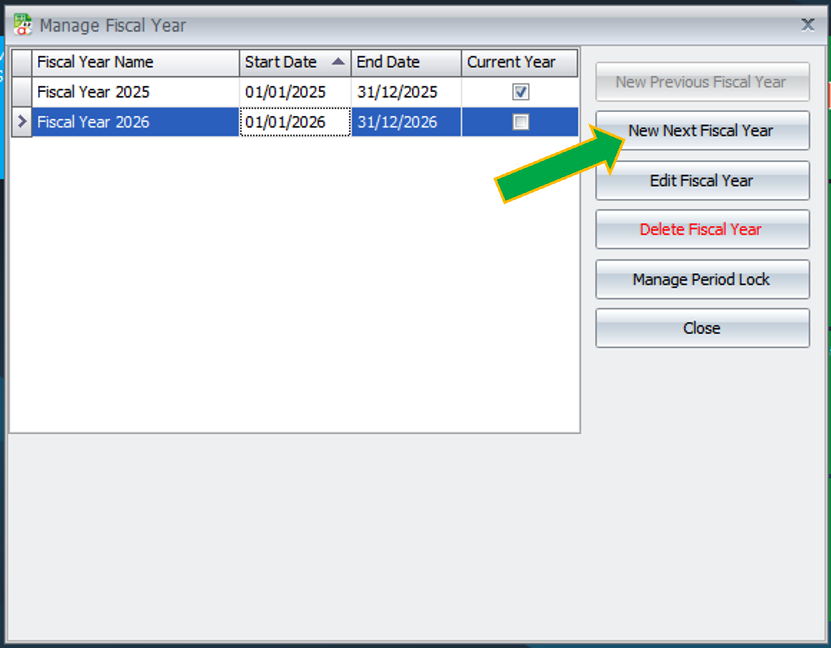
How to: Go to “Tools > Manage Fiscal Year” and click “New Next Fiscal Year”.
The Benefit: This allows you to start posting transactions for the new year while still being able to finalize the previous year’s accounts.
2. Edit Fiscal Year Dates
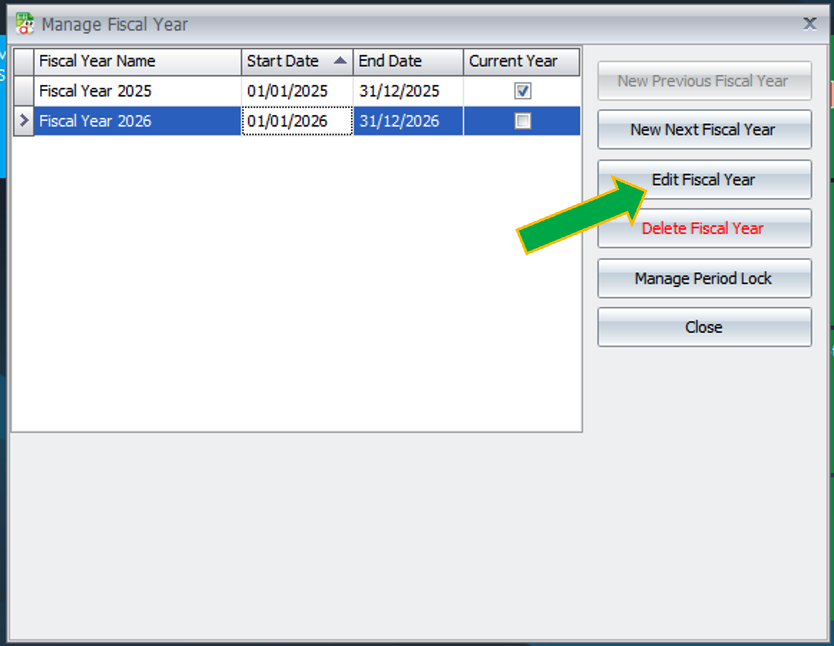
Highlight a year and click Edit Fiscal Year. Use this to fix incorrect dates or rename the period.
How to: Highlight the specific year and click “Edit Fiscal Year”
The Benefit: You can correct start/end dates or rename the fiscal year for better organization. Note: Use caution when changing dates if data has already been entered.
3. Lock Periods for Data Integrity
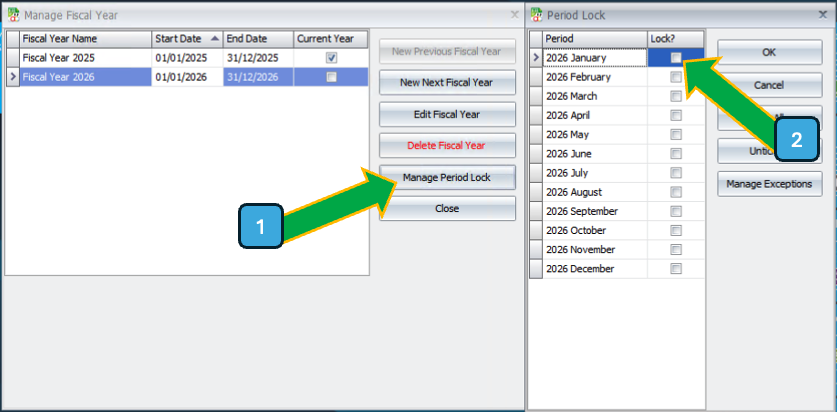
To prevent accidental or unauthorized editing of posted entries after a month-end or audit, you should lock the period.
How to: Select “Manage Period Lock” and check the “Lock?” box for the specific months you wish to secure.
The Benefit: This ensures your finalized financial statements remain unchanged and reliable.
4. Add Previous Year Data
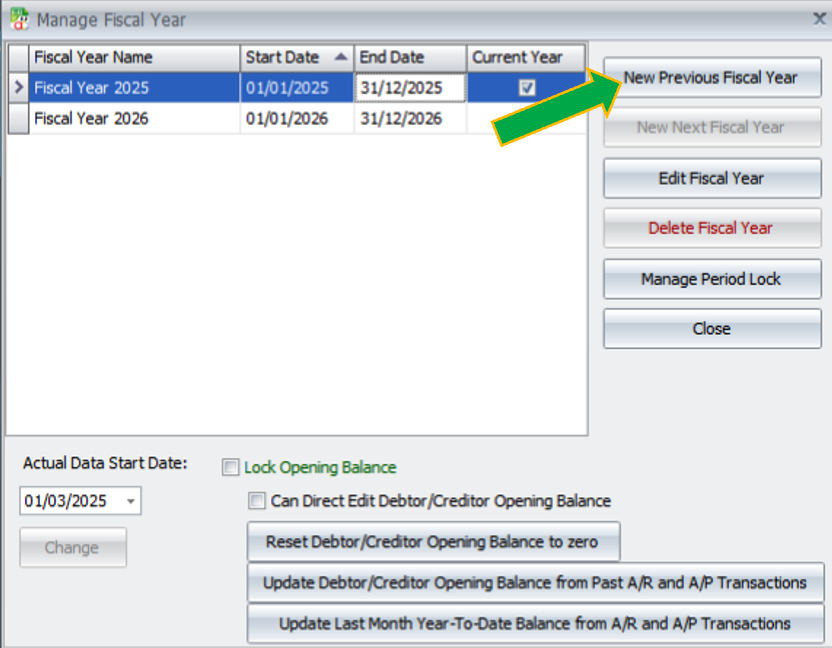
If you need to migrate historical records into AutoCount, the system supports backdating.
How to: Click “New Previous Fiscal Year” to add historical fiscal periods.
Pro Troubleshooting: “Date Outside Range” Error
If you encounter a system error preventing you from saving a transaction, it is likely because the Document Date falls outside of your established fiscal year range. Simply verify your dates in the Manage Fiscal Year settings to resolve this.
As a leading provider of AutoCount accounting and POS solutions in Malaysia, EZSOFT SDN BHD is here to ensure your business operations run smoothly. If you are still unable to find your missing icons or need help with e-invoicing integration, our technical team is ready to assist.
Need more help on AutoCount system? Contact us via WhatsApp or visit our Contact Us page for more professional software tutorials.