
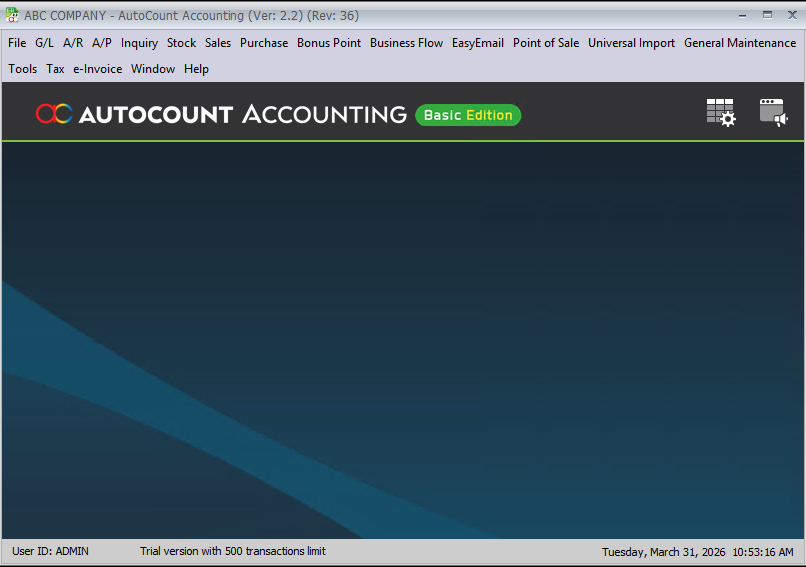
Have you ever opened your software only to find that the AutoCount main screen icon or shortcut has suddenly disappeared? It can be frustrating when your workspace doesn’t look the way it usually does, especially when you are in the middle of a busy workday.
Don’t worry — this is a common occurrence and usually happens if a shortcut is accidentally closed or hidden. In this guide, we will show you how to quickly bring back your AutoCount main screen icon in just a few simple steps.
Why Did My Shortcut Disappear?
There are a few reasons why your AutoCount main screen shortcut might be missing:
- Accidental Closure: In fact, you might have clicked the ‘X’ on the shortcut window by mistake.
- Layout Reset: A system update or a change in user settings might have reset your workspace layout.
- Hidden Taskbar: Sometimes icons are simply moved to a different area of the screen or hidden behind other windows.
Step-by-Step: How to Restore the AutoCount Main Screen Icon
Step 1 : Open Widget Setting
Find this icon on top of your right.

Then, Step 2 : Found Widget Setting
Then click on this Icon “Widget Setting”.

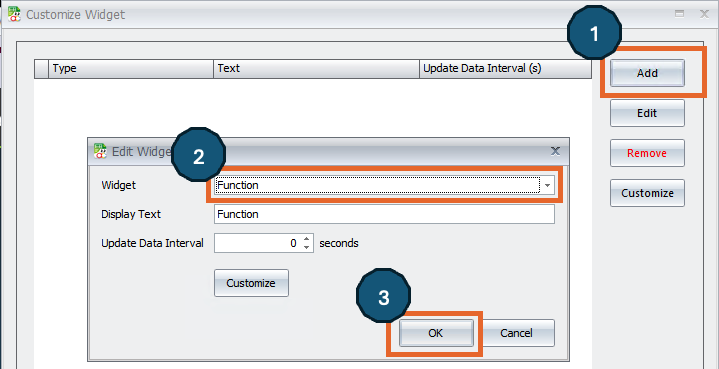
Step 3 : Choose widget in widget setting
Now we have few more step to done the process.
1. press on the “Add” button.
2. Choose “Function” in Widget.
3. Press “OK”
Step 4 : Dock the widget and maximize it
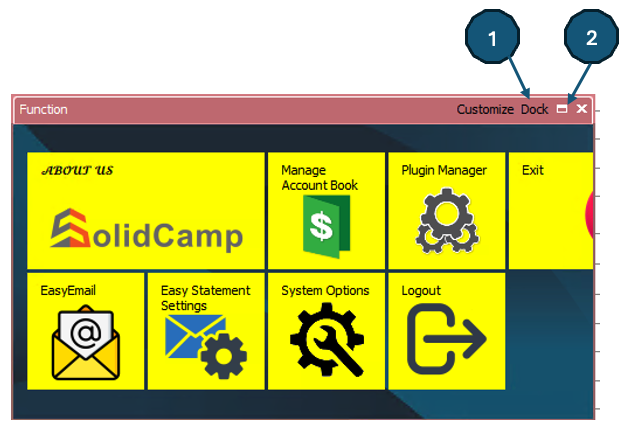
After you added the widget, you can press on the “DOCK” button, and then press the maximize button to make the shortcut bigger.
As a leading provider of AutoCount accounting and POS solutions in Malaysia, EZSOFT SDN BHD is here to ensure your business operations run smoothly. If you are still unable to find your missing icons or need help with e-invoicing integration, our technical team is ready to assist.
Need more help on AutoCount system? Contact us via WhatsApp or visit our Contact Us page for more professional software tutorials.